Power Automate Get Member Email Addresses of a SharePoint Online Group
Updated:
2 min read
Sending email to the members of a SharePoint Online group is something I do on just about every Power Automate project but not often enough to memorize the steps. This is a note to myself so I can reference it next time. If you stumble upon this post, hopefully you'll get some value from a clear explanation without the bouncing ads that infect most SharePoint/Power Platform guides.
Scenario #
There are many reasons a Power Platform developer may need to send emails to all members of a SharePoint Online group. Power Automate does not have any native hooks to do this so we must tap into the SharePoint REST API to get all members of a group. I use Solutions so I can call child flows as I generally have several different flows where I need to perform this functionality. Solutions and child flows are pretty close to PowerShell functions. Build it once then call the functionality from whichever flow you need.
Solution #
We're going to use the Send an HTTP request to SharePoint action in Power Automate to access the SharePoint Online REST API.
Trigger #
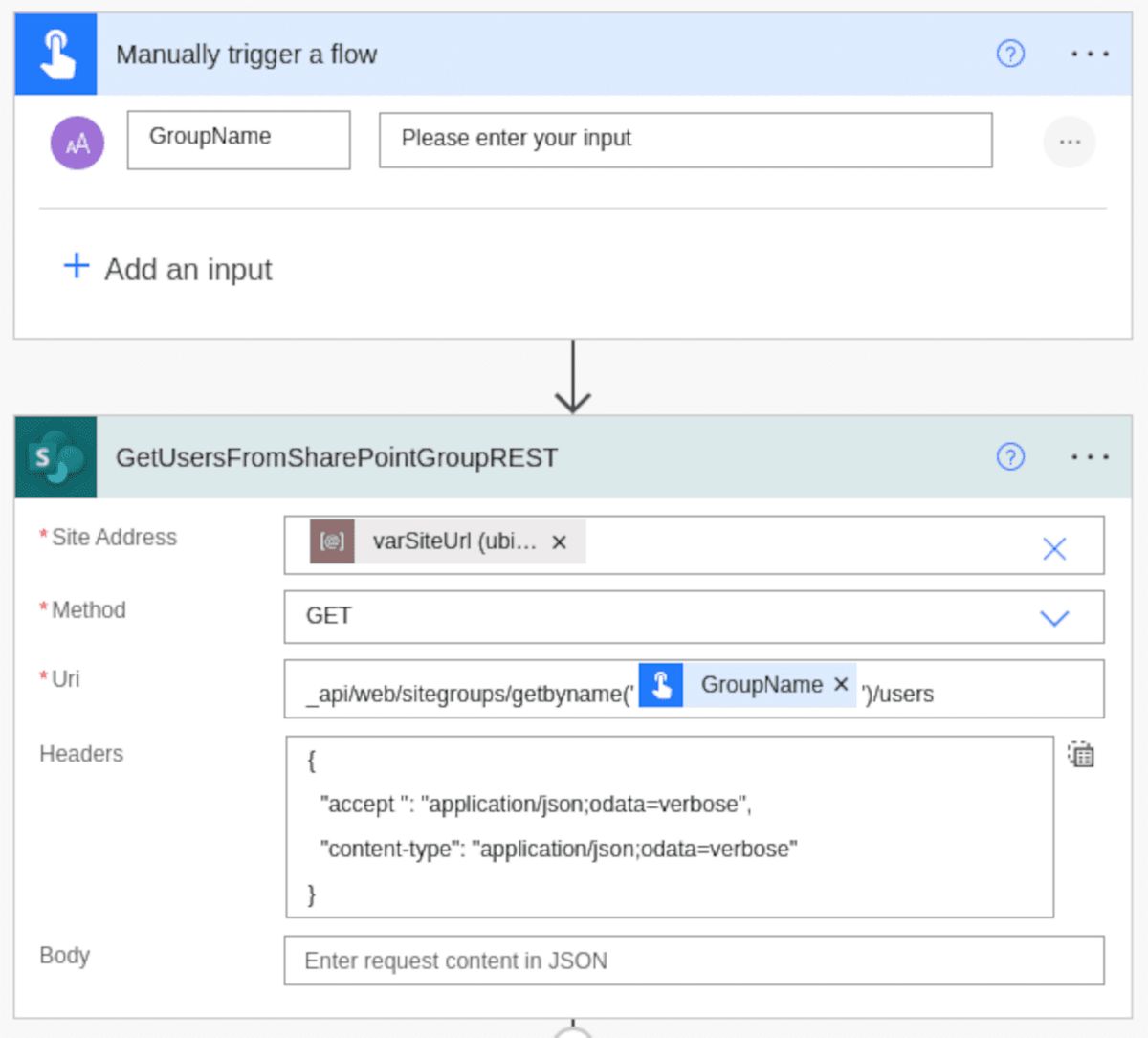
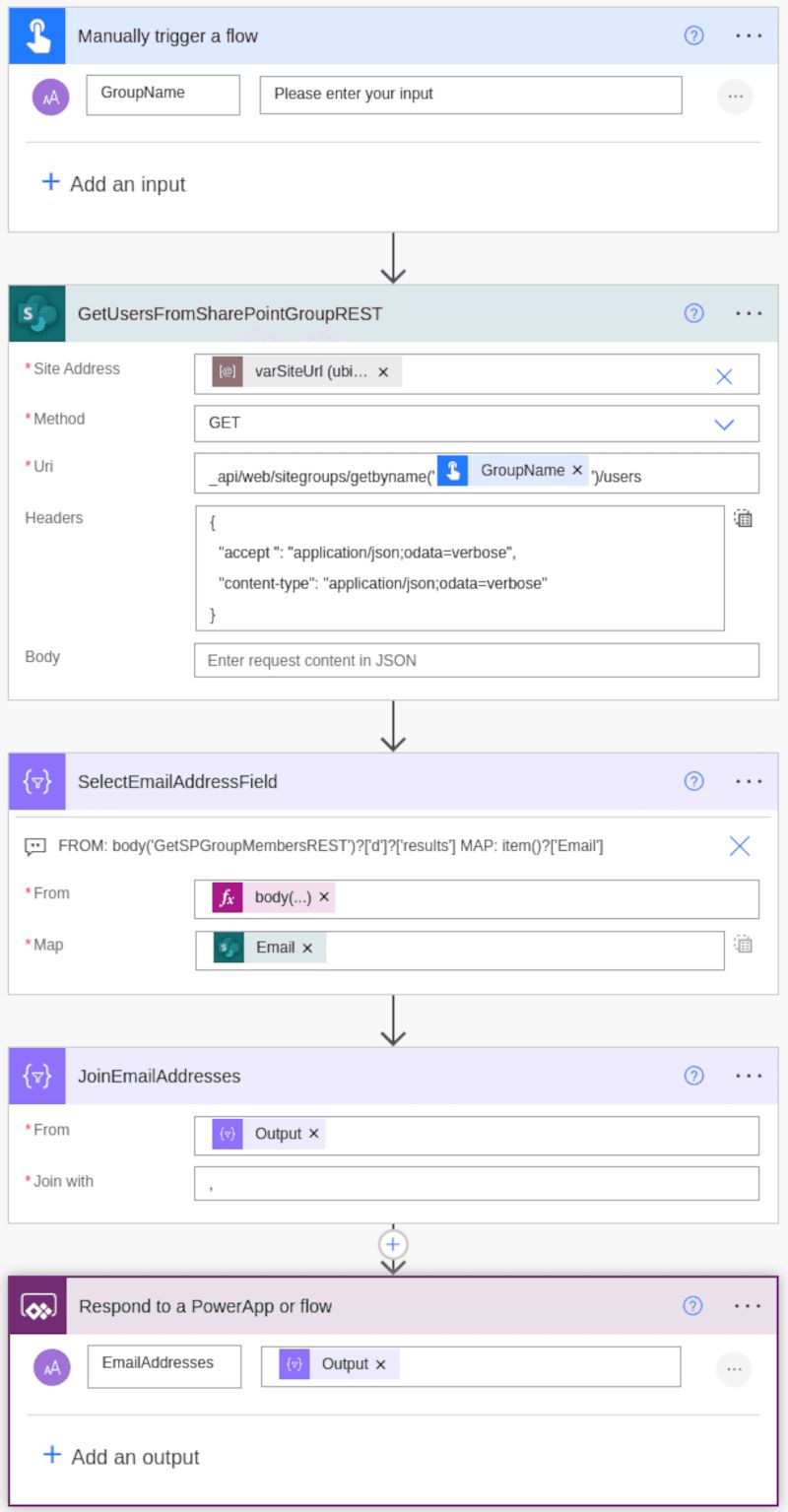
Since I'm building a child flow to use as a function for multiple other flows, my trigger is Manually trigger a flow with the group name as the only input.
Send an HTTP request to SharePoint #
Next, let's use add a Send an HTTP request to SharePoint action.
Uri: _api/web/sitegroups/getbyname('YOUR-GROUP-NAME-HERE')/users
Headers:
{
  "accept": "application/json;odata=verbose",
  "content-type": "application/json;odata=verbose"
}
Select #
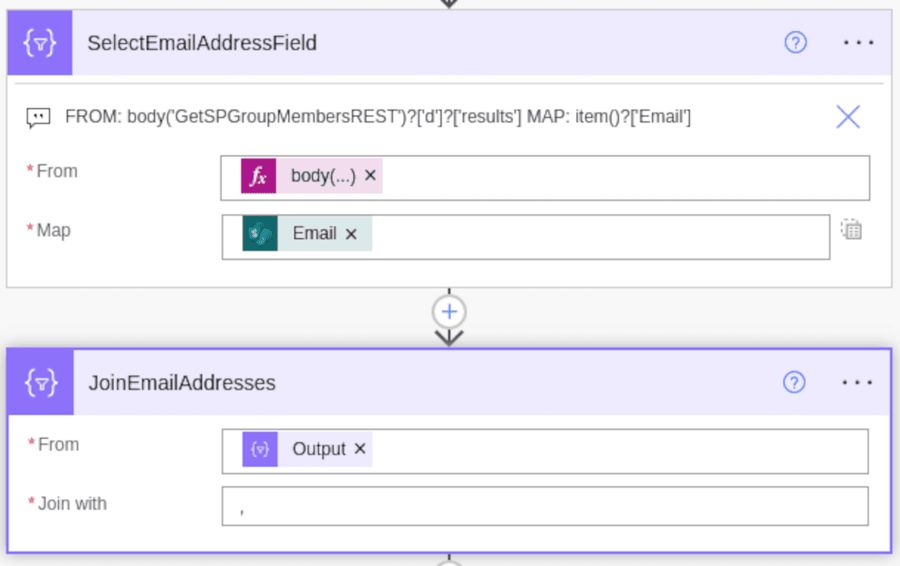
Next, add a Select action.
From: body('GetUsersFromSharePointGroupREST')?['d']?['results']
Map: item()?['Email']
Join #
Now let's add a Join action.
From: body('SelectEmailAddressField')
Join with: ,
(Note: the separator is a comma followed by a space.)
Respond to a PowerApp or flow #
Finally, we Respond to a PowerApp or flow and return the email addresses back to the parent flow.
Conclusion #
Now I have a flow that I can call as a child flow and serves the same functionality of a PowerShell function in that we can reuse it across multiple other flows in our solution.
Future me, you're welcome.
Change Log
- 2026-02-14 - Fixed REST API URI (missing closing parenthesis), fixed trailing space in accept header, improved image alt texts, and general copy editing.